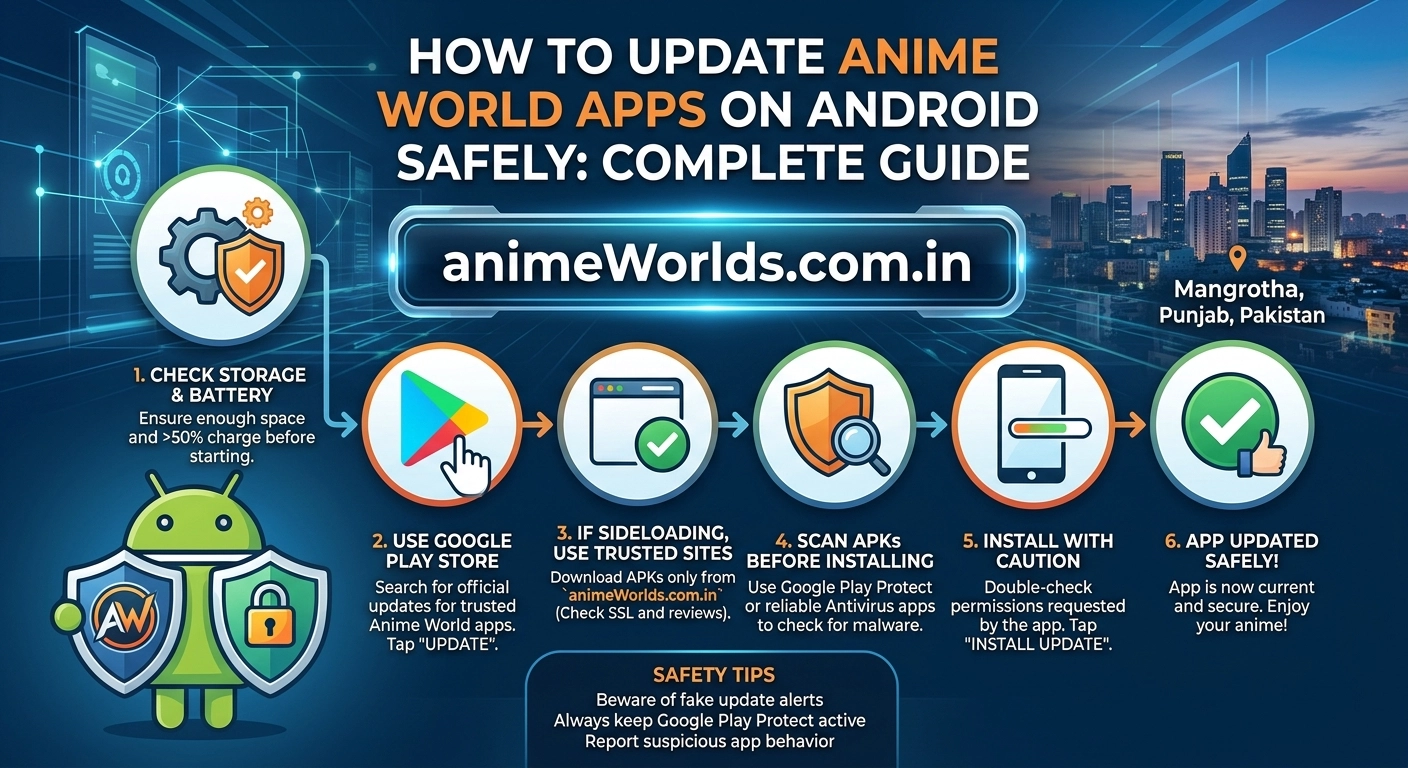
How to Update Anime World Apps on Android Safely: Complete Guide
Anime World apps on Android bring thousands of shows, movies, and original animations right to your fingertips. However, maintaining these applications requires regular updates to fix playback bugs, patch security vulnerabilities, and unlock fresh streaming features. Because many niche anime applications are distributed as third-party APK files outside standard app stores, updating them safely can feel challenging. A single incorrect download link can expose your Android device to malware or compromise your personal data.
In this hands-on guide, you will learn the safest methods to upgrade your favorite anime streaming applications on Android. We will cover step-by-step update procedures, security precautions, automatic setup methods, and practical troubleshooting steps to ensure continuous, buffer-free entertainment.
Understanding Why Anime Streaming Applications Need Regular Updates
Keeping your mobile streaming platforms updated goes beyond simply accessing new features. Mobile app developers constantly push patches to address backend code changes, server migration updates, and video player enhancements.
- Enhanced Video Playback: Developers refine embedded media players to support higher resolution streams, reduce buffering, and correct subtitle synchronization issues.
- Security Patching: Outdated software packages contain known security vulnerabilities. Updating patches security gaps before malicious actors exploit them.
- Server Compatibility: Anime platforms frequently change content delivery network (CDN) routes to maintain high streaming speeds. Older application builds lose connections to active content servers.
- Android OS Compatibility: Major updates to Android (such as Android 14 or 15) introduce strict permission models. Regular updates ensure your media software functions without crashing on new operating system builds.
Safe vs. Unsafe Update Methods: What Every User Must Know
Android offers unmatched freedom for software installation, but this flexibility comes with responsibility. Understanding the distinction between safe installation sources and risky distribution portals keeps your hardware safe.
| Update Channel | Security Level | Convenience | Main Advantage |
| Official Play Store | Highest | Fully Automatic | Play Protect background security scans |
| Developer Repositories | Very High | Manual Verification | Direct access to official build files |
| Trusted Third-Party Hubs | High | Semi-Automatic | Verified cryptographic signatures |
| Unverified Forum Links | Very Dangerous | High Risk | None — severe risk of spyware |
Always avoid downloading package installers from random file-hosting platforms, modified application forums, or untrusted social media groups. These unofficial files frequently bundle hidden tracking tools or intrusive ad software inside legitimate application code.
Method 1: Updating Anime Apps via Official App Stores
If your preferred animation platform resides inside the official Google Play Store, updating requires minimal effort. Google automatically scans applications using Play Protect to prevent malicious code execution.
How to Enable Automatic Updates
- Launch the Google Play Store on your Android device.
- Tap your profile icon in the upper-right corner of the interface.
- Select Settings, then expand Network Preferences.
- Tap Auto-update apps and select Over Wi-Fi only to preserve mobile data.
How to Force a Manual Update Immediately
- Open the Google Play Store.
- Tap your profile picture and select Manage apps & device.
- Locate the Updates available section.
- Find your targeted anime application in the list and press Update.
Method 2: Safe Manual Updates via Sideloading (APK Files)
Many specialized anime applications operate outside traditional app marketplaces. Installing updates for these platforms requires a process called sideloading. Follow these exact steps to update manual installations safely without losing your watchlist history.
[ Download Official APK File ]
            │
            ▼
[ Verify Cryptographic Hash ]
            │
            ▼
[ Overwrite Existing Installation ]
            │
            ▼
[ Test App Functionality & Permissions ]
Step 1: Enable Necessary Installation Permissions
Modern Android releases require per-app installation permissions rather than a single global setting.
- Open your phone’s Settings menu.
- Navigate to Apps (or Apps & Notifications).
- Tap Special App Access at the bottom of the page.
- Select Install Unknown Apps.
- Choose your web browser (e.g., Chrome, Firefox) and toggle Allow from this source to ON.
Important Security Tip: Immediately turn this permission off after completing your update installation to prevent unauthorized background downloads in the future.
Step 2: Download the Update Package from Verified Sources
Obtain the latest install package (.apk or .apks) directly from the developer’s official project repository or verified software distribution hubs like APKMirror. Verified distribution sites check developer digital signatures to guarantee that file contents remain unmodified.
Step 3: Run the Direct Overwrite Update
Do not uninstall your existing app. Uninstalling removes stored preference files, custom settings, and saved offline watch lists.
- Open your Android device’s File Manager.
- Locate your newly downloaded installation file in the Downloads folder.
- Tap the package file.
- Android will display a prompt asking: “Do you want to install an update to this existing application?”
- Tap Update (or Install).
- Wait for the system process to complete, then select Done.
How to Verify File Integrity Before Installation
Before executing any downloaded installation package on your smartphone, take thirty seconds to verify its safety using hash verification and security tools.
Check Hashes with VirusTotal
- Visit VirusTotal.com inside your phone’s browser.
- Upload the downloaded
.apkpackage before opening it. - Review the diagnostic scan report across dozens of antivirus engines.
- Verify that the file displays zero flag detections.
Match Digital Developer Signatures
Android uses digital certificates to ensure software authenticity. When you install an update over an existing application, Android compares the update package certificate against the installed version. If signatures do not match, Android blocks the installation automatically. Never bypass signature mismatch warnings by deleting your application, as this indicates a potentially modified or malicious file.
Setting Up In-App Update Notifications for Niche Anime Platforms
Top-tier independent streaming apps feature built-in update check mechanisms. Configuring these features allows applications to alert you the instant developers release new video player scripts.
- Launch your streaming application.
- Navigate to the Settings or Preferences panel.
- Scroll down to the About or Updates section.
- Enable the toggle for Check for Updates Automatically.
- Select your preferred update channel (choose Stable over Beta builds for reliable playback).
When a new build drops, the app will notify you via a secure pop-up linking directly to the developer’s official release page.
Troubleshooting Common Update Failures on Android
Even when following accurate guidelines, application updates can occasionally fail. Here is how to fix the most common Android installation errors quickly.
                  Common Update Errors & Fixes
┌──────────────────────┬──────────────────────────────────────────┐
| Error Message        | Immediate Solution                       |
├──────────────────────┼──────────────────────────────────────────┤
| App Not Installed    | Free internal storage space (min 1-2 GB) |
| Signature Mismatch   | Delete file; redownload from official source |
| Parsing Error        | Download file again; original copy corrupted |
| Storage Permission   | Grant storage rights in Android Settings |
└──────────────────────┴──────────────────────────────────────────┘
Fixing “App Not Installed” Errors
This error usually stems from insufficient device memory or conflicting software architectures (e.g., trying to install a 64-bit package on a 32-bit operating system).
- Clear at least 2 GB of internal storage space.
- Restart your phone to clear temporary system memory logs.
- Check whether your processor requires
arm64-v8aorarmeabi-v7ainstallation files.
Resolving “Parse Error: There Was a Problem Parsing the Package”
Parse errors mean the installer package did not download completely.
- Delete the corrupted file from your Downloads folder.
- Reconnect to a stable Wi-Fi connection.
- Download a fresh copy of the application package.
Essential Post-Update Security and Maintenance Routine
Once your application successfully updates, run through this brief maintenance checklist to keep your mobile hardware running smoothly and safely.
- Revoke Installation Rights: Return to Settings > Apps > Special App Access > Install Unknown Apps and disable installation privileges for your browser and file managers.
- Delete Leftover Install Files: Delete downloaded
.apkinstaller packages from your storage directory to regain valuable device space. - Clear System Cache: Go to Settings > Apps > [Your Anime App] > Storage & Cache and tap Clear Cache. This removes legacy temporary files and fixes interface lag post-update.
- Verify App Permissions: Ensure your newly updated app only accesses necessary permissions like Network and Storage. Deny unusual requests such as Location, Contacts, or Microphone access.
Frequently Asked Questions (FAQ)
Final Thoughts
Safely updating your Android anime apps comes down to smart habits: downloading from verified developer sources, verifying file safety, and revoking installation permissions after every update. By following this guide, you can protect your device from malware while enjoying continuous, fast access to your favorite shows. Keep your apps fresh, double-check file integrity, and enjoy seamless streaming!